Computers
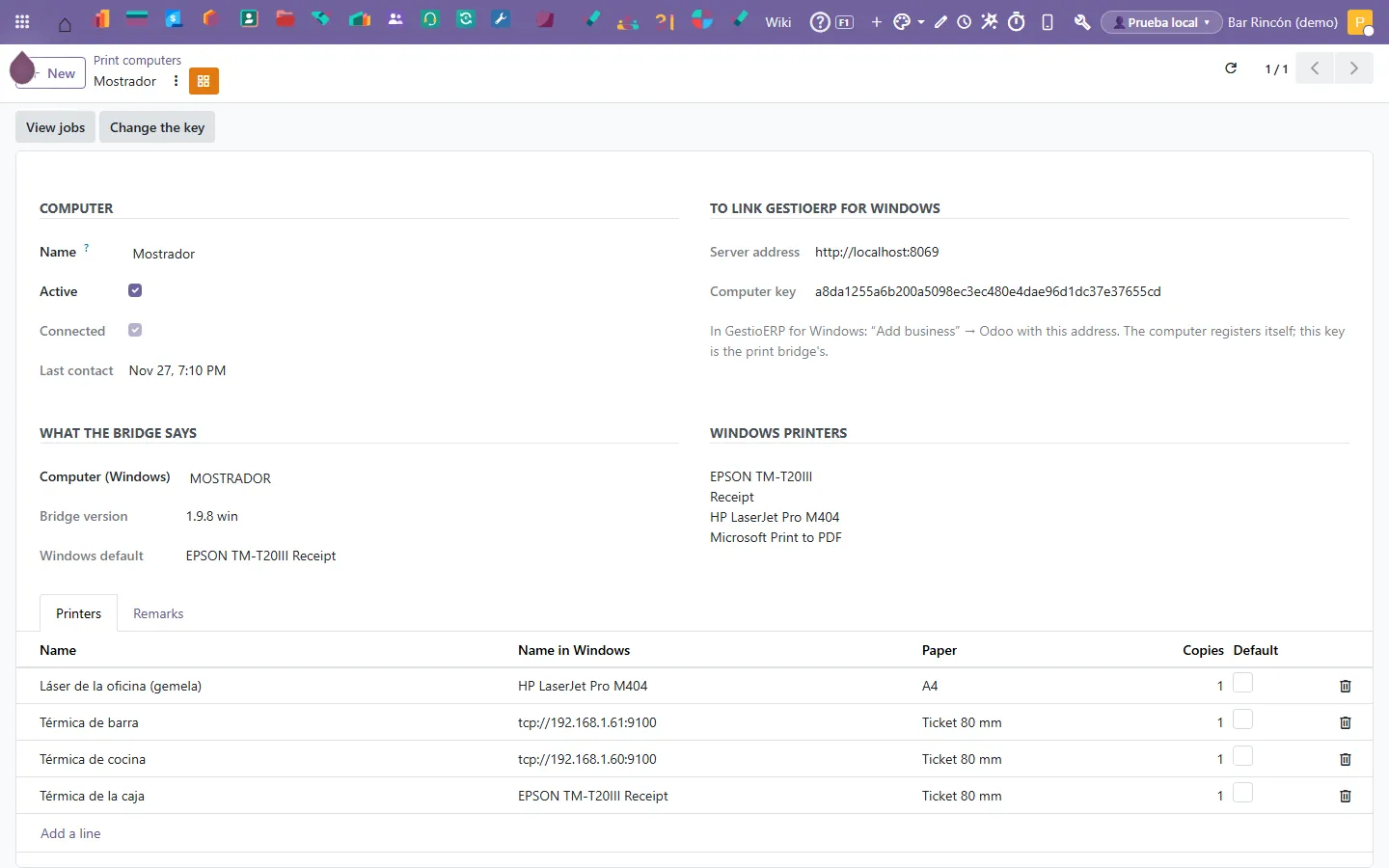
Each office computer with the Print Bridge. It is added on its own when GestioERP for Windows is linked (the wizard or «Register this PC», as an administrator) and from here you see it, deactivate it or change its key.

▶ In motion: computers, point by point.
- 1View jobs shows that computer's queue; Change the key generates a new key (the previous bridge can no longer connect until it is linked again).
- 2Connected means the computer has made contact in the last 2 minutes; Last contact gives the exact time. Deactivating it (Active) removes it from printing.
- 3The server address and the computer key are the ones the bridge uses; only administrators see the key.
- 4What the bridge itself reports: the computer name, its version (1.6 or higher is needed to print by IP) and the default Windows printer.
- 5The list of Windows printers the bridge sees, to copy the exact name when registering a printer.
- 6Printers tab (the ones on this computer) and free Remarks.
How it is done
- Open Documents › Direct printing › Computers (administrators only).
- The computer linked from GestioERP for Windows already shows with the computer name: open it and give it a clear name, for example «Counter».
- Look at «Connected» and «Last contact»: if it is not connected, that PC's bridge is not running.
- Windows printers» has the exact names to add its printers.
- To link it by hand: New, type the name and save; copy the «Computer key» and paste it into GestioERP for Windows › Settings › Print bridge › «Computer key (DirectPrint)».
- «View jobs» shows its queue; «Change the key» unlinks it until the new one is set; untick «Active» to retire it.
Rating
There are no comments for now.
to be the first to leave a comment.