Home and dashboards
The Home screen with boxes that everyone sets up to taste, and a panel for each area (Sales, Purchases, Warehouse, Master data, Shop and web…) with figures, buttons, tabs, filters and table.
1. Home
The first thing you see when you log in: your figures, the dashboards and the pending items. It is built with boxes.

▶ In motion: home, point by point.
- 1Type an order, invoice, customer, tax ID or product and choose the result.
- 2The little wheel opens «This is how the dashboard looks» to add, move and remove boxes.
- 3Sales of the month and the year with the variation, what is pending collection and payment.
- 4One button per area: it opens its dashboard.
- 5The sales line against the previous year.
- 6The oldest items waiting: press «Ver todos» for the full list.

How it is done
- Press the cogwheel ⚙ at the top right.
- «+ Add to dashboard…» and choose a box (the eye shows it first).
- Drag each box by its ≡ handle; «◧ Half / ▭ Full» changes the width; the cross removes it.
- «Save the dashboard» (or «Save for everyone» if you are an administrator).
Keyboard
| ? | Keyboard help |
| ←↑→↓ | Moving through figures, buttons and rows |
| Enter | Open |
| Esc | Go back |
| Alt + number | Open the top menu |
2. The dashboards of each area
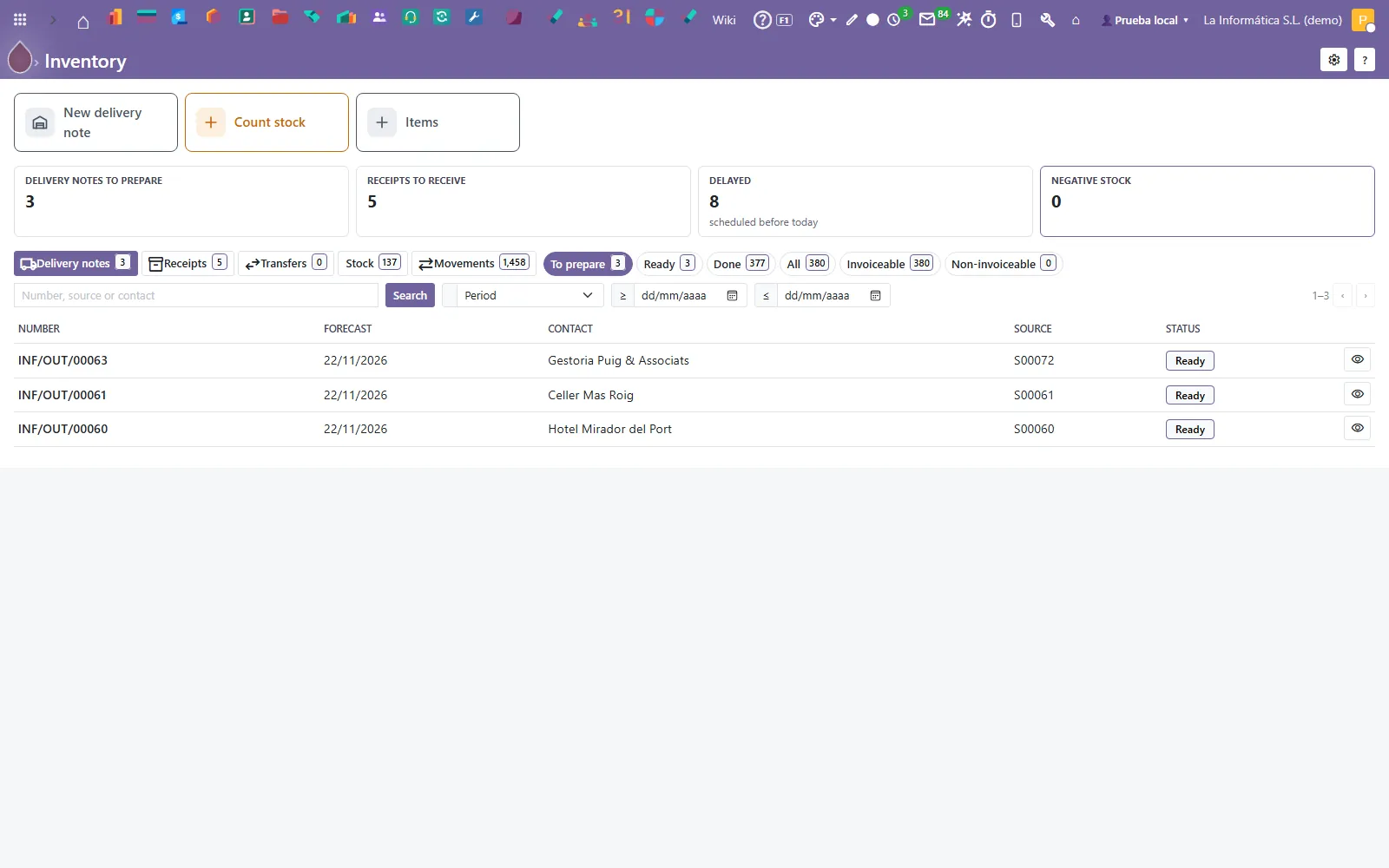
All work the same way.

▶ In motion: the dashboards of each area, point by point.
- 1The figures of the area; press one to see its list.
- 2The buttons for what is done most (new document, scan…).
- 3The tabs: each one is a list (quotes, orders, delivery notes, invoices…).
- 4The search box searches in the open tab (number, customer, tax ID…).
- 5The quick filters of the tab with their counter.
- 6The table: press a row to open it; the eye shows the PDF in a window.
Keyboard
| ↓ from the search box | Go down to the table |
| PgDn / PgUp | Skip 10 rows or a page |
3. Internal users
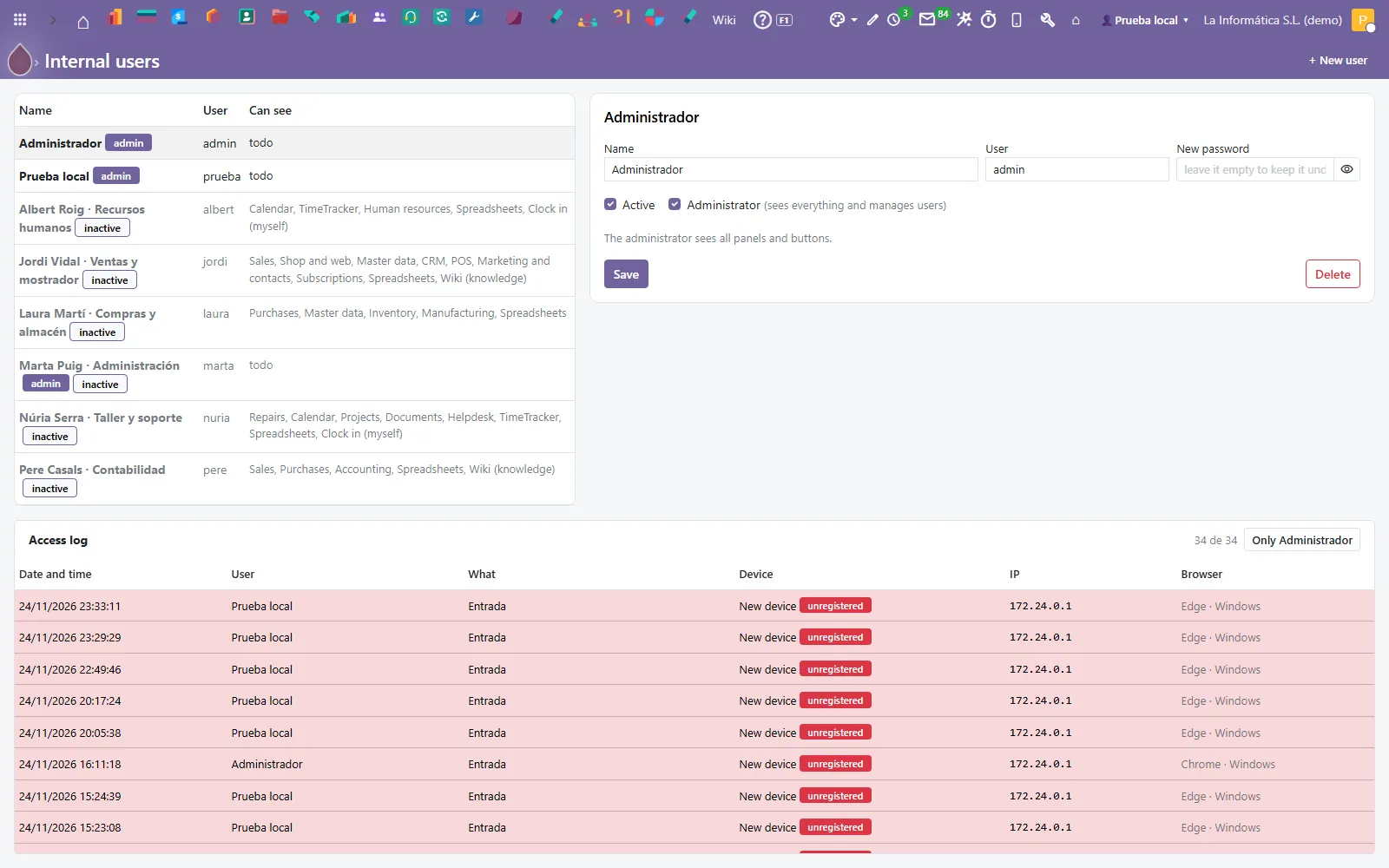
Several people enter with the same Odoo user and each has their own permissions: dashboards, buttons and options of each module. Only the administrator manages them.

▶ In motion: internal users, point by point.
- 1Each person with their name, their key and whether they are an administrator.
- 2Tick the dashboards and, inside them, the buttons the person can use. What they do not have does not appear for them.
4. The Home search box
Type an order or invoice number, a customer, VAT or product in the Home search and click the result.
5. The month's figures
The «Month figures» tile on Home: sales this month and year, receivables, payables, orders to invoice. Click a figure for its list.
6. The box with the year in three figures
Add the «Year in three figures» tile with the Home wheel: income, purchases and costs and profit.
7. The management boxes on Home
In «Build the panel», «+ Add to panel…» lists the management tiles: top customers, collections, families, weekdays, lapsed customers, VAT…
8. The sales dashboard
Home › Sales: figures, buttons and tabs for quotes, orders, deliveries, invoices and payments.
9. The purchases dashboard
Home › Purchases: new order, supplier invoice, scan, and tabs for RFQs, orders, receipts, invoices and payments.
10. The master data dashboard
Home › Master data: customers, suppliers, products, categories, attributes, warehouses, carriers and terms.
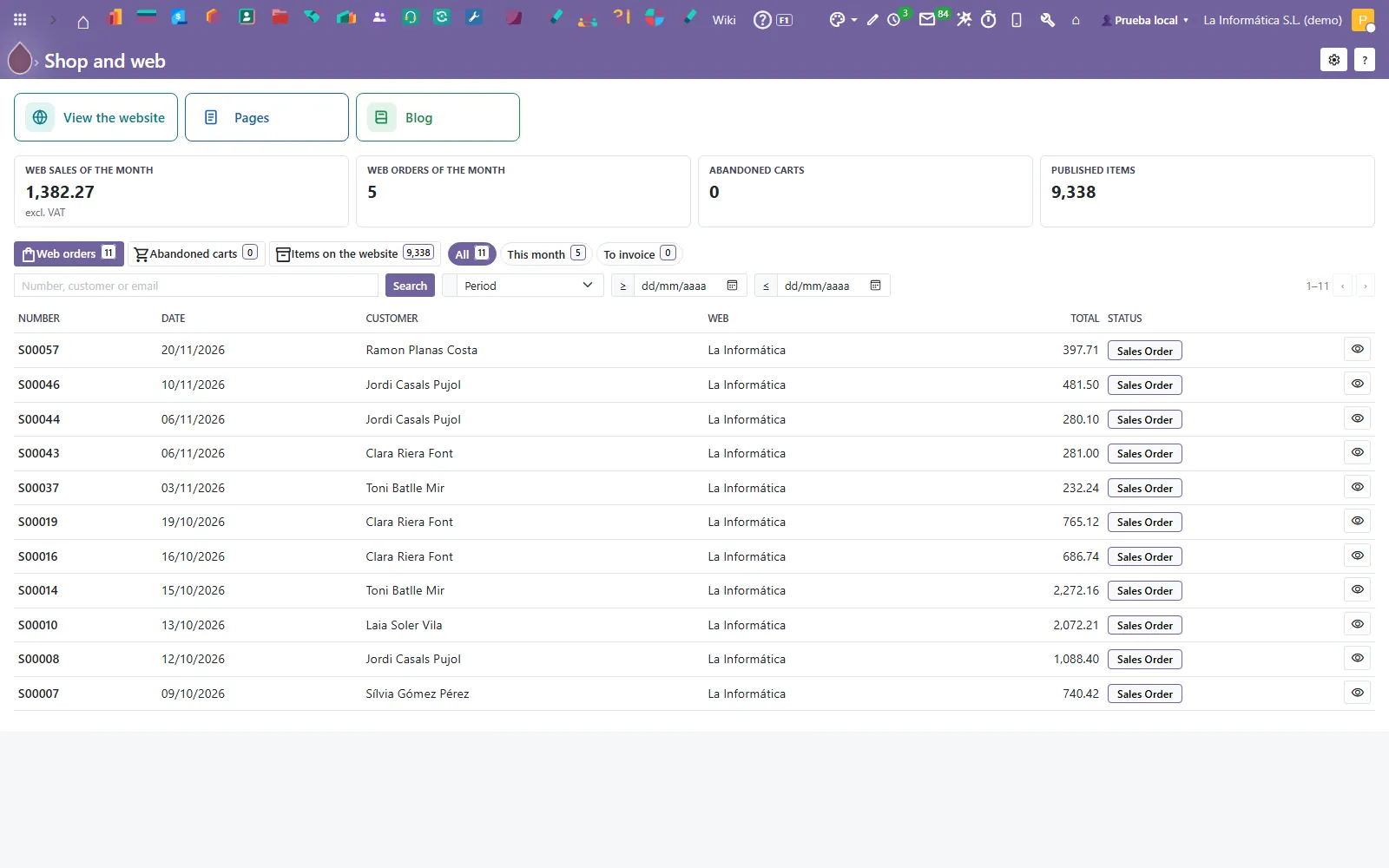
11. The shop and web dashboard
Home › Shop and web: view and edit the website, pages, blog, products and orders.
12. The documents menu
At the top, Documents › Files or Folders. Needs the «documentos» permission.
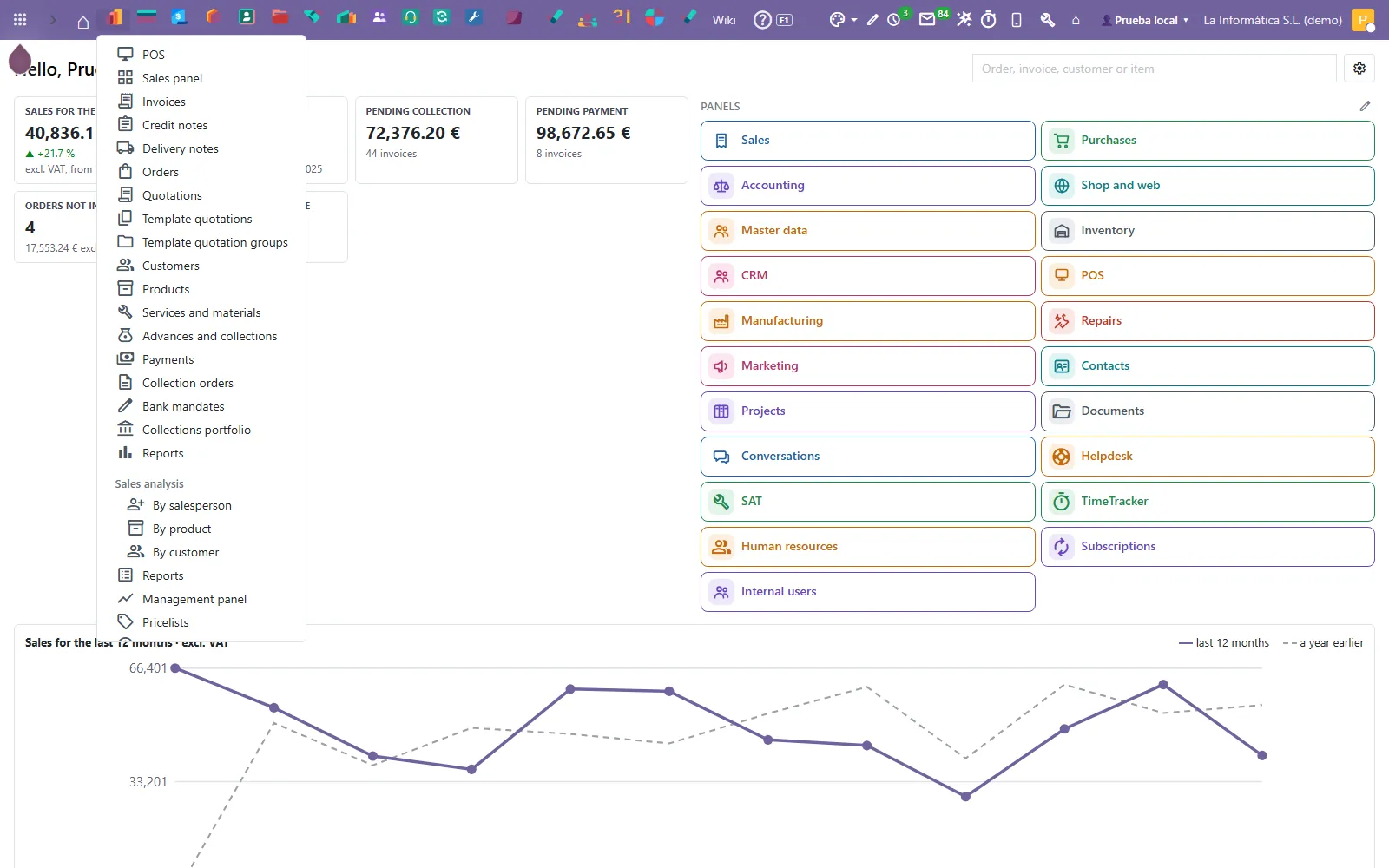
13. The menu icons
Alt + number opens the top menu, ↑↓ move through it and ←→ go to the next menu.
14. The house at the top
Click the ⌂ house at the top or in the breadcrumb; Esc goes back.
15. The new order button
Home › Sales › «New order» or «New delivery».
Frequently asked questions
How do I customize the home screen?
On Home press the ⚙ wheel. Use «+ Add to panel…» to pick tiles, drag them by the ≡ handle, «◧ Half / ▭ Full» changes the width and the cross removes them. Then «Save the panel».
How do I give permissions to an employee?
Home › Internal users (admin only). Create the person with a password and tick the panels and buttons they may use.
How do I preview a document?
In the panel tables, the eye button opens the PDF in a window on top, with Download and Open. Esc closes it.
What keyboard shortcuts are there?
Press «?» on any screen for the keyboard help: arrows, Enter, Esc, Alt + number and PgUp / PgDn.
How do I search an invoice or a customer?
Type an order or invoice number, a customer, VAT or product in the Home search and click the result.
How do I see this month's sales?
The «Month figures» tile on Home: sales this month and year, receivables, payables, orders to invoice. Click a figure for its list.
How do I see the year's income, costs and profit?
Add the «Year in three figures» tile with the Home wheel: income, purchases and costs and profit.
How do I add top customers or lapsed customers to home?
In «Build the panel», «+ Add to panel…» lists the management tiles: top customers, collections, families, weekdays, lapsed customers, VAT…
How do I open the sales panel?
Home › Sales: figures, buttons and tabs for quotes, orders, deliveries, invoices and payments.
How do I open the purchases panel?
Home › Purchases: new order, supplier invoice, scan, and tabs for RFQs, orders, receipts, invoices and payments.
How do I see customers and products?
Home › Master data: customers, suppliers, products, categories, attributes, warehouses, carriers and terms.
How do I see web orders?
Home › Shop and web: view and edit the website, pages, blog, products and orders.
How do I open stored documents?
At the top, Documents › Files or Folders. Needs the «documentos» permission.
How do I open a menu with the keyboard?
Alt + number opens the top menu, ↑↓ move through it and ←→ go to the next menu.
How do I go back to home?
Click the ⌂ house at the top or in the breadcrumb; Esc goes back.
How do I create a sales order directly?
Home › Sales › «New order» or «New delivery».
Why can't I see Inicio y paneles?
If you can't see it, your internal user lacks the «el del panel de cada área» permission: the administrator grants it in Home › Internal users.
The Home screen with boxes that everyone sets up to taste, and a panel for each area (Sales, Purchases, Warehouse, Master data, Shop and web…) with figures, buttons, tabs, filters and table.
There are no comments for now.
to be the first to leave a comment.