Invoice scanning
Upload purchase invoices (PDF or photo) or bring them in from email; the AI reads them, you review them in three columns, create the products with their retail price, serial numbers and lots, and they are imported as a supplier invoice.

▶ In motion: scanning a supplier invoice, step by step.
- Upload: drag the PDF or the photo, or let it arrive by email.
- The AI reads: supplier, tax ID, date, number, bases, VAT and lines.
- Review: the document on one side and what was read on the other; correct whatever is doubtful.
- Enter: the supplier invoice is created with its journal entry.
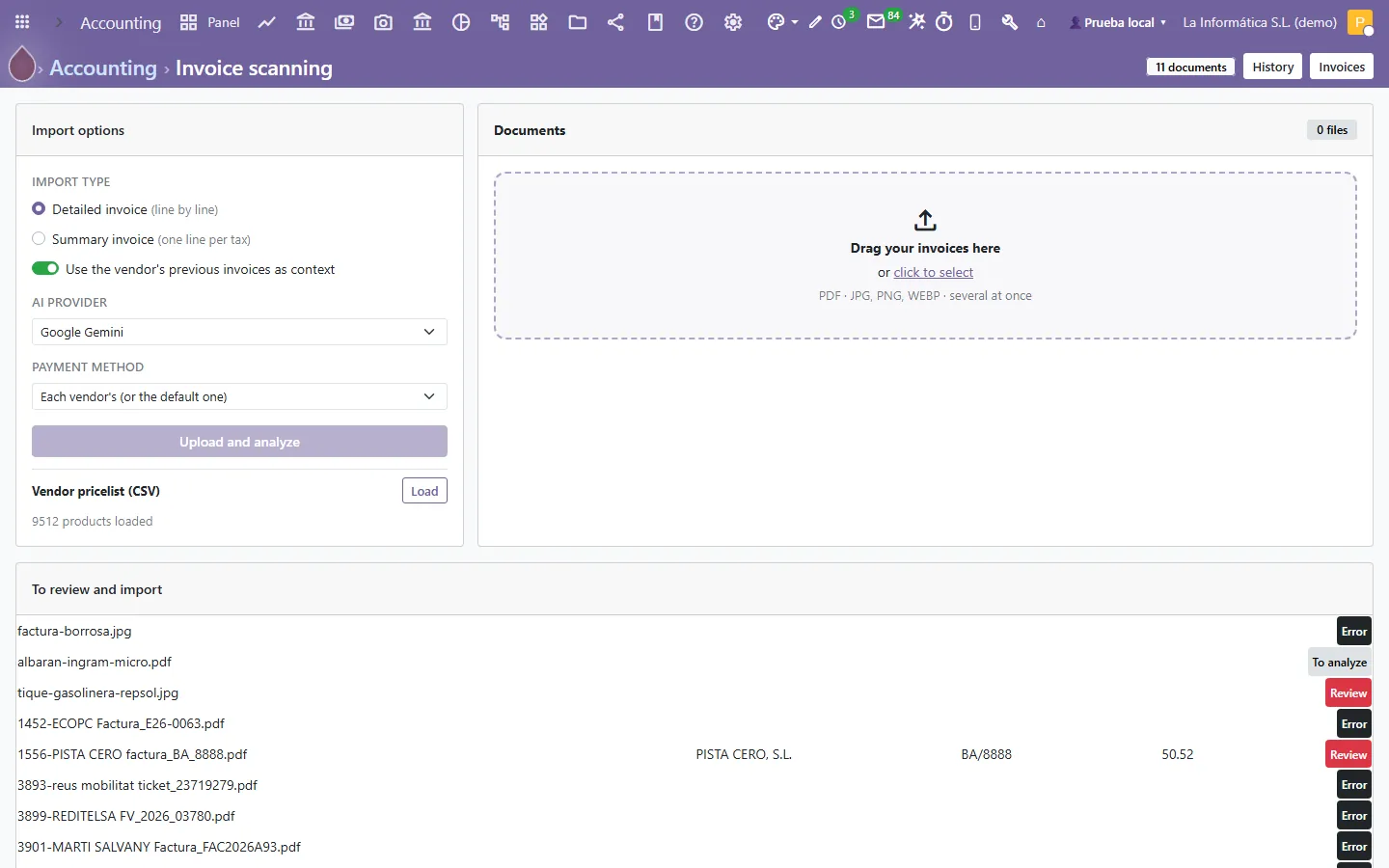
1. Upload and analyze
Drag several invoices at once or bring them from email.

▶ In motion: upload and analyze, point by point.
- 1Detailed (line by line) or summarized (one line per VAT), use previous invoices as context and the supplier's CSV price list.
- 2Drop PDFs or photos and press «Upload and analyze».
- 3The PDFs that arrive in the email account with «factura» or «invoice»: «Revisar» sends them to the AI without marking the email.
- 4The latest purchase invoices entered.
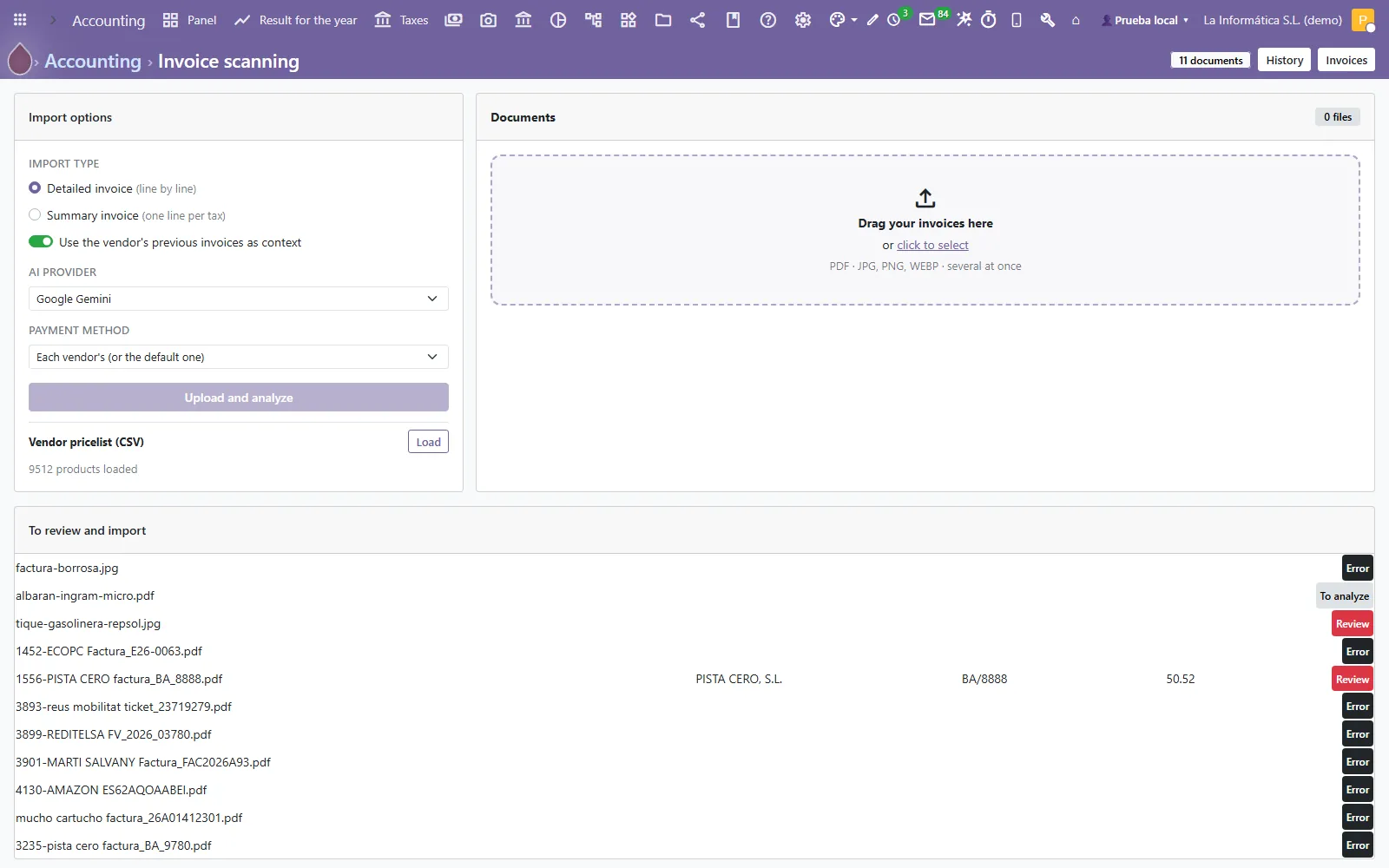
2. Invoice scanning: review and enter
Each invoice is reviewed in three columns before it enters: on the left the list, in the centre the data the AI has read (to correct it) and on the right the original document to compare it.

▶ In motion: invoice scanning: review and enter, point by point.
- 1The list of invoices with their status: pending, to review, reviewed or error. Right here, «Drag your invoices here» to upload more, in PDF or image (or bring them from email).
- 2«Review extracted data»: the «AI notes»; the supplier (with the confidence % and «Will be created new» if it does not exist), tax ID/CIF, invoice no. («Automatic»), date, total, payment method and due date; the products (description, quantity, cost, VAT %, reverse charge, disbursement, freight, reference, «Create product», margin and retail price, serial, lot and barcode); IRPF %, deductible VAT and expense account; the totals with a warning if they do not match; the «Journal entry that will be created»; and the buttons Reject, Save and «Mark as reviewed».
- 3The original document (PDF or image viewer) to compare against. At the top: the document counter, «History» and «Invoices».
How it is done
- Press an invoice in the list. Read the «AI notes» and the warnings (for example «An invoice with that number already exists»): if it does not apply, «× Reject».
- Check the supplier (name, tax ID and its % of confidence). If it says «Se creará nuevo», it will be created on import. Fix the invoice no. (or «Automático» if it has none), date, total, payment method and due date.
- In each product line review description, quantity, cost and VAT %, and check ISP, supplied costs or carriage if applicable. Without a product: «+ Create product» (or «Create all») with the «Margin %» and «Apply» for the retail price; check «Has serial number» or «Has lot» and type them, and choose the barcode auto or by hand.
- Enter the IRPF %, the deductible VAT (all, 50 % or none) and the expense account («Save in the supplier record» for the next ones).
- Check the totals (subtotal, taxes, IRPF, total): if it says «Does not match the total read», correct the lines. The «Journal entry that will result» (debit and credit) is updated with «Recalculate».
- «Save» leaves the invoice half done; «✓ Mark as reviewed» moves to the next one. With all reviewed, «Proceed to import» (top): the supplier invoice is created as a draft with the PDF attached, and you post it from «Invoices».
- If there are storable products, importing also creates the warehouse receipt, with the serial numbers and lots you have entered.
3. The detailed or summarized invoice
In Options: detailed or summary.
4. The supplier's price list
In Scanning, «Supplier price list (CSV)» › Load.
5. The duplicate invoice warning
If it already exists you get a warning and «Reject».
6. The scan provider
Found by VAT; «Change» to pick another.
7. Deductible VAT and IRPF
In the review: withholding %, deductible VAT and expense account.
8. The reverse charge
ISP column of the line.
9. The journal entry that will result
Below totals, the resulting entry.
10. The rejected invoices
In «Rejected and hidden» and History.
11. Proceed to import
When reviewed, «Proceed to import».
Frequently asked questions
How do I scan a purchase invoice?
Accounting › Invoice scanning: drop the PDFs, «Upload and analyse», review each one and «Import».
How do I create products when scanning?
In the review, each line has «+ Create product» with the price from the margin; serials and lots are created on import.
invoices received by email
In Scanning, «Invoices received by email»: choose account and folder, «Check now» and «Review».
How do I choose how the invoice is read?
In Options: detailed or summary.
How do I load the supplier price list CSV?
In Scanning, «Supplier price list (CSV)» › Load.
How do I avoid entering an invoice twice?
If it already exists you get a warning and «Reject».
How do I change the supplier?
Found by VAT; «Change» to pick another.
How do I set withholding on an invoice?
In the review: withholding %, deductible VAT and expense account.
How do I mark reverse charge?
ISP column of the line.
How do I preview the entry before importing?
Below totals, the resulting entry.
How do I recover a rejected invoice?
In «Rejected and hidden» and History.
How do I import the reviewed invoices?
When reviewed, «Proceed to import».
How do I review a scanned invoice?
Invoice scanning › click the invoice: in the centre «Review extracted data» and on the right the original document to compare. Fix what's needed, «Save» and «Mark as reviewed».
How do I know if the AI read a field correctly?
At the top the «AI notes» and, next to each field, the confidence %: the lower, the more worth checking against the document.
How do I number an invoice that has none?
Next to «Invoice no.» click «Automatic»: it uses the date (YYYYMMDD) plus a suffix if it already exists.
How do I know if the invoice adds up?
Below the lines: subtotal, taxes, withholding and total; if it differs from the read total you get «Doesn't match». «Recalculate» rebuilds the entry.
How do I get the invoice and the stock receipt?
«Proceed to import» creates the supplier invoice as a draft with the PDF attached; storable products also get a stock receipt with serials and lots.
Why can't I see Escaneo de facturas?
If you can't see it, your internal user lacks the «Contabilidad › Escaneo o Compras › Escanear» permission: the administrator grants it in Home › Internal users.
Upload purchase invoices (PDF or photo) or bring them in from email; the AI reads them, you review them in three columns, create the products with their retail price, serial numbers and lots, and they are imported as a supplier invoice.
There are no comments for now.
to be the first to leave a comment.