GERP ODOO Course
Completed
Texts for documents
Library of texts by groups (payment methods, warranties, installations…) to add with one click to quotes, orders and invoices.
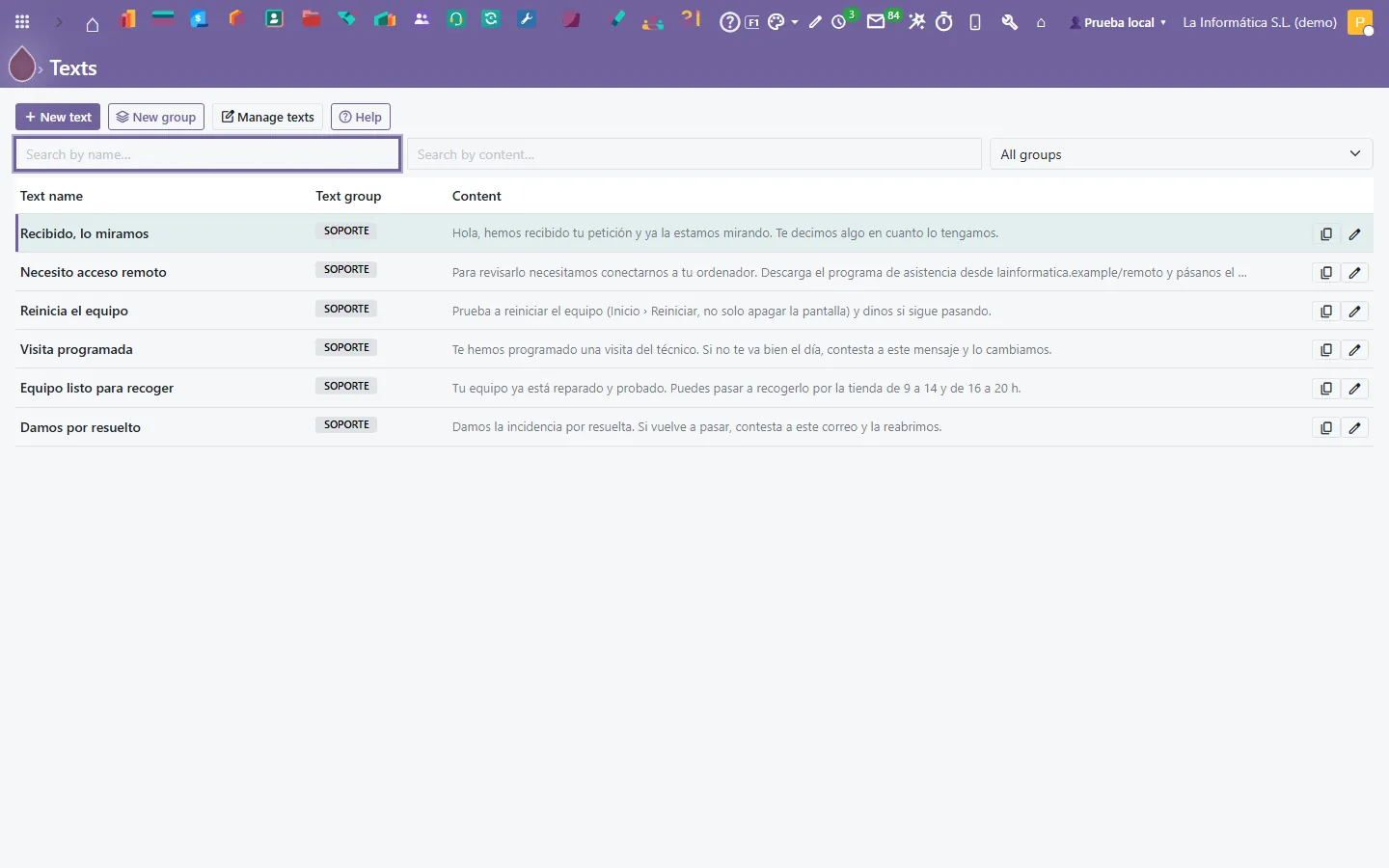
1. Texts window
«Texts» button in the document header.

▶ In motion: texts window, point by point.
- 1Create texts and groups.
- 2Search by name or content.
- 3«+» adds it as a line; the icon, with a title; the speech bubble, to the notes.
Keyboard
| ↑↓ | Choose text |
| Enter | Add it |
| Esc | Close |
2. The text groups
«New group».
3. Edit a text
Pencil button.
4. Add with title
The icon button adds it with a title.
5. The document remarks
The speech bubble adds it to the terms.
6. Copy a text
Copy button.
7. Search a text
«Search by content».
8. Manage texts
Sales › Texts.
9. The texts on invoices
On a draft invoice, «Texts».
Frequently asked questions
How do I add a text to a quotation?
On the quotation press «Texts», find it and press «+». Manage them in Sales › Texts.
How do I create a text group?
«New group».
How do I change a saved text?
Pencil button.
How do I add a text as a titled section?
The icon button adds it with a title.
How do I put a text in the terms?
The speech bubble adds it to the terms.
How do I duplicate a text?
Copy button.
How do I search a text by content?
«Search by content».
How do I see all texts?
Sales › Texts.
How do I add a text to an invoice?
On a draft invoice, «Texts».
Why can't I see Textos para documentos?
If you can't see it, your internal user lacks the «ventas» permission: the administrator grants it in Home › Internal users.
Library of texts by groups (payment methods, warranties, installations…) to add with one click to quotes, orders and invoices.
There are no comments for now.